
How to Pull Professional Development Pro™ Reports (Company Administrators)
You can easily track how your Professional Development programs are performing by pulling detailed reports on employee participation, budget usage, and reimbursements. These reports give you insight into how employees are spending their professional development funds and how your program budgets are being managed—all at the click of a button.
OVERVIEW
Professional Development reports allow Admins to review employee submissions, pre-approvals, reimbursements, and budget utilization. Compt provides two types of reports: Requests Report and Budgets Report, each offering detailed visibility into program activity.
WHEN TO USE
Use these reports when you want to:
- Monitor employee engagement with Professional Development programs
- Track pre-approval and reimbursement requests
- Review budget allocations and spending
- Identify expired or incomplete requests
BEFORE YOU START
- Ensure you have Admin access in Compt.
- Confirm that Professional Development programs are active and have budgets assigned.
- Know the date range for which you want to pull reports.
HOW TO
- Log into Compt.
-
Hover over the Reporting tab in the sidebar.
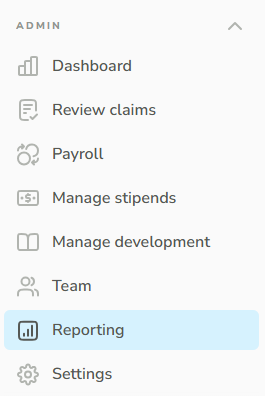
3. Select the desired date range for your report.
4. Click appropriate tab for the report type you want:
- Professional Development Budgets
-
Professional Development Requests
Budgets Report Details
- Program Name – Professional Development Program eligible during selected timeframe
- Program Budget Type – Shared, Individual, or Case-by-case
- Program Budget Start Date – Program start date
- Program Budget End Date – Program expiration date
- Group – Employee or group name based on budget type
- Currency – Currency of issued funds
- Budget – Issued budget amount
- Pre-Approved – Amount pre-approved
- Reimbursed – Amount reimbursed through payroll
Requests Report Details
- Employee Name – Employee who submitted the request
- Program Name – Professional Development Program the request is for
- Program Budget Type – Shared, Individual, or Case-by-case
- Pre-Approval Request Date – Date employee submitted pre-approval request
- Pre-Approval Amount – Amount requested (updated when approved)
- Pre-Approval Estimated Completion – Expected completion date entered by the employee
- Reimbursement Request Date – Date documentation and reimbursement request submitted
- Reimbursement Amount – Amount approved for reimbursement
- Reimbursement Completion Date – Date reimbursement request was approved
- Currency – Currency of issued funds
- Vendor – Vendor associated with the request
- Description – Reason provided by the employee
- Status – Current request status (Pre-approval requested, rejected, partially pre-approved, pre-approved, reimbursement requested, approved, rejected, reimbursed, expired)
- Primary Approver – Name of primary approver
- Primary Approved Date – Date primary approver approved
- Secondary Approver – Name of secondary approver (if assigned)
- Secondary Approved Date – Date secondary approver approved
- Reimbursement Reviewer – Name of reimbursement reviewer
- Reimbursement Reviewed Date – Date reimbursement reviewer approved
- Payroll Processed Date – Date included in a closed Compt Payroll Report for processing
Note: Case-by-case programs may not appear in the Budgets Report until pre-approval is completed. For full details, review the Requests Report.
WHAT HAPPENS NEXT
After downloading, you can analyze participation trends, track budget usage, and identify any pending or expired requests. Reports can be shared with stakeholders or used to plan future program budgets.
TROUBLESHOOTING
- If a report shows blank fields, it indicates that the step has not yet occurred in Compt.
- Ensure date ranges are correct if expected data is missing.
- For issues with report access, confirm Admin permissions.
FAQS
Q: Can I see requests that have expired?
A: Yes, expired requests appear in the Requests Report under the Status column as "Expired."
Q: Why don’t case-by-case programs appear in the Budgets Report?
A: Case-by-case budgets are applied only after pre-approval. Review the Requests Report for these details.
Q: When is reimbursement processed?
A: Reimbursement is processed through payroll. For exact timing, check the FAQ tab in Compt for company-specific details.
If you have any additional questions, our support team is happy to help! Please reach out to support@compt.io if you need assistance.