
Compt: Emailing Receipts to Submit a Stipend Claim – Employees
Submitting Stipend Receipts by Email
You can now start a stipend claim by emailing your receipt. This is only for stipend claims; it does not work for Business Expenses or Professional Development Pro submissions.
Step 1: Set Up Access for Email Receipts
- Log in to your Compt account.
- Click My Stipends.
- Click your name in the upper-right corner and select My Account.
-
Scroll to the Enabling email receipts section at the bottom.
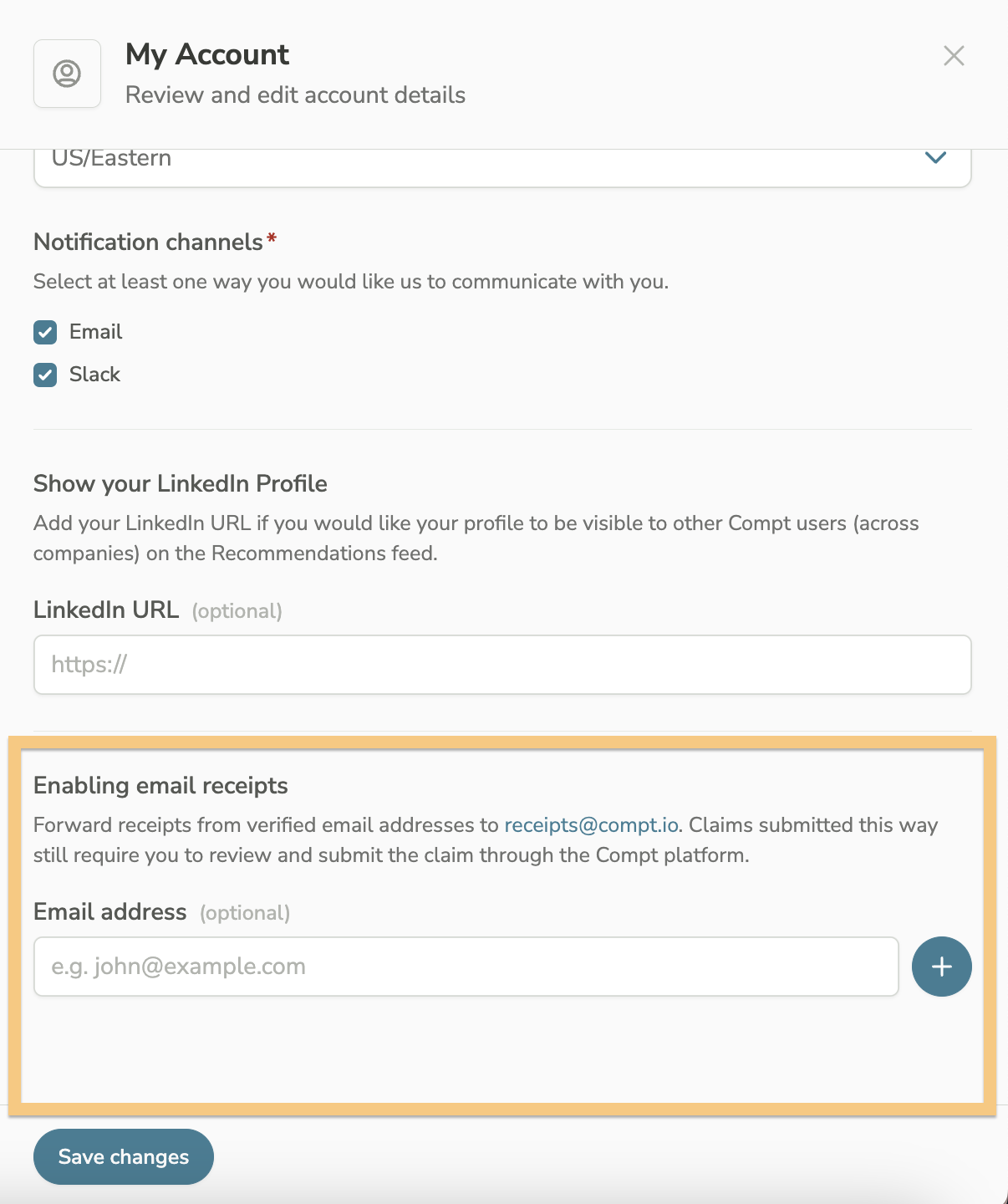
- Enter the email address(es) you’ll forward receipts from, then click the plus sign.
- Check the inbox of that email address for a verification email from Compt.
-
Click Verify email and log back into your Compt account.
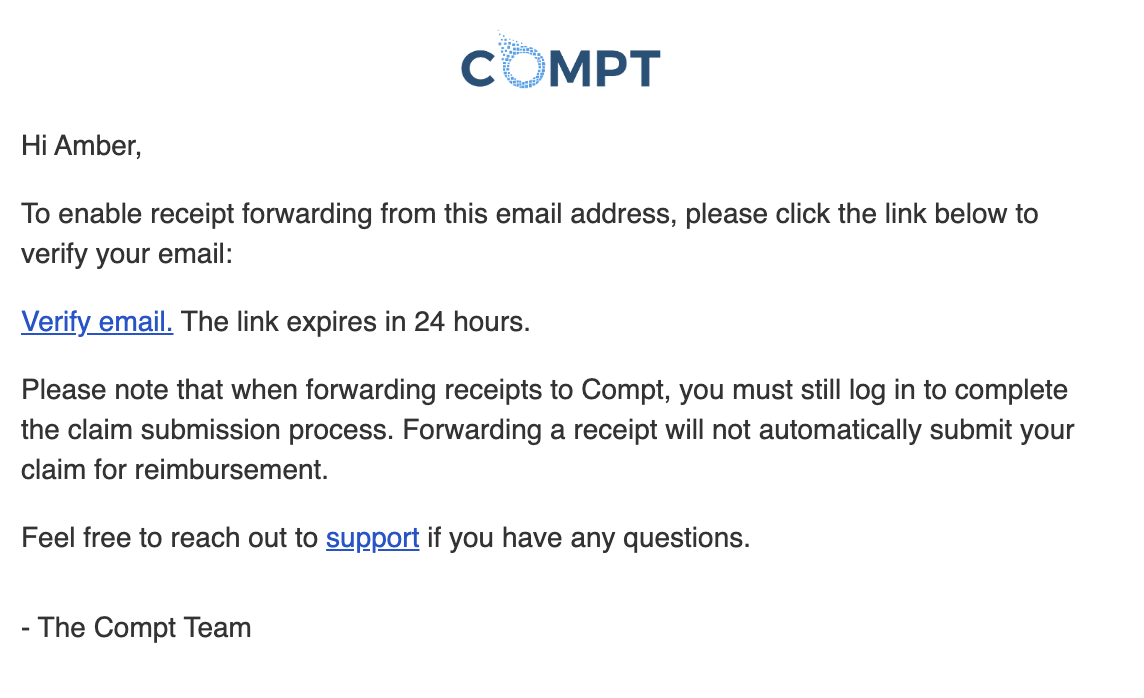
⚠️ Only verified email addresses can be used to start a draft claim. Emails from unverified addresses will not create a draft.
Step 2: Email Your Receipt
- Forward your receipt to receipts@compt.io.
-
You will receive a confirmation email that a draft claim has been created.
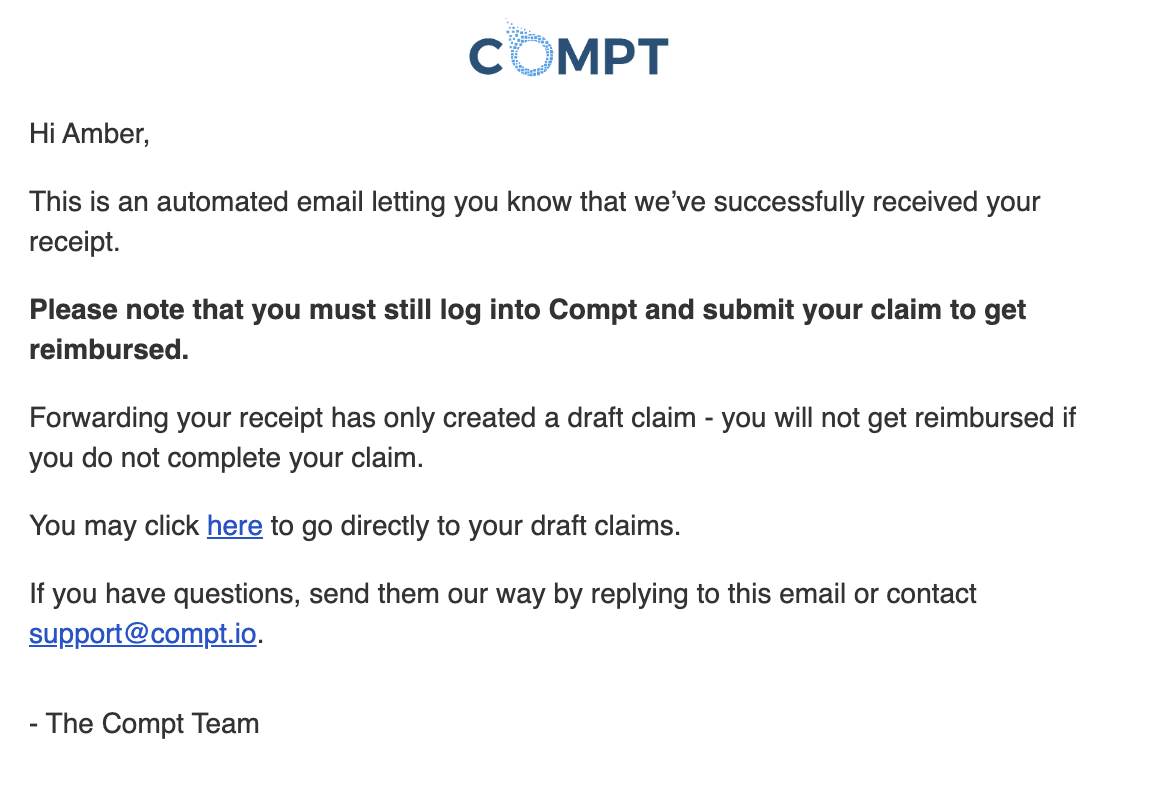
⚠️ Forwarding a receipt does not submit the claim. You still need to log in to complete the submission. You will not receive email reminders for draft claims.
Step 3: Complete Your Draft Claim
- Log in to your Compt account.
-
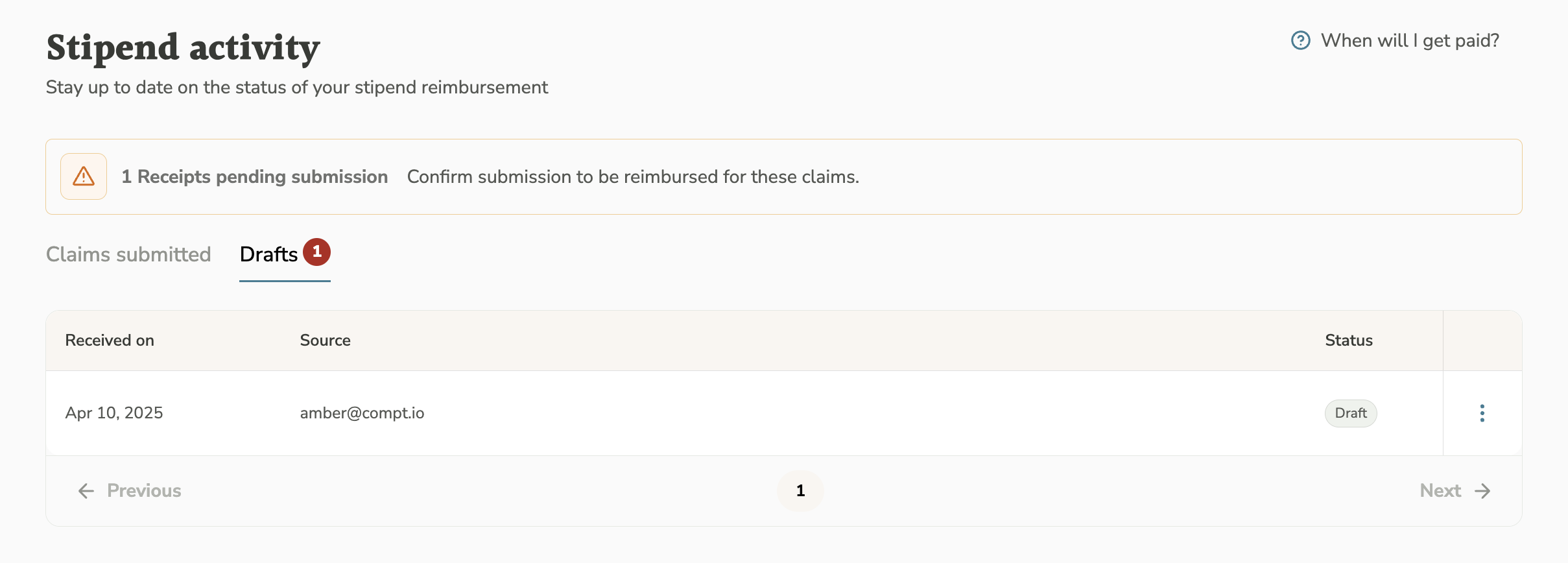
At the top of your screen, you’ll see a pending claim notification. Click Review.

-
You’ll see your draft claim(s). Click the one you just created.
-
On the right-hand side, fill in any missing information.
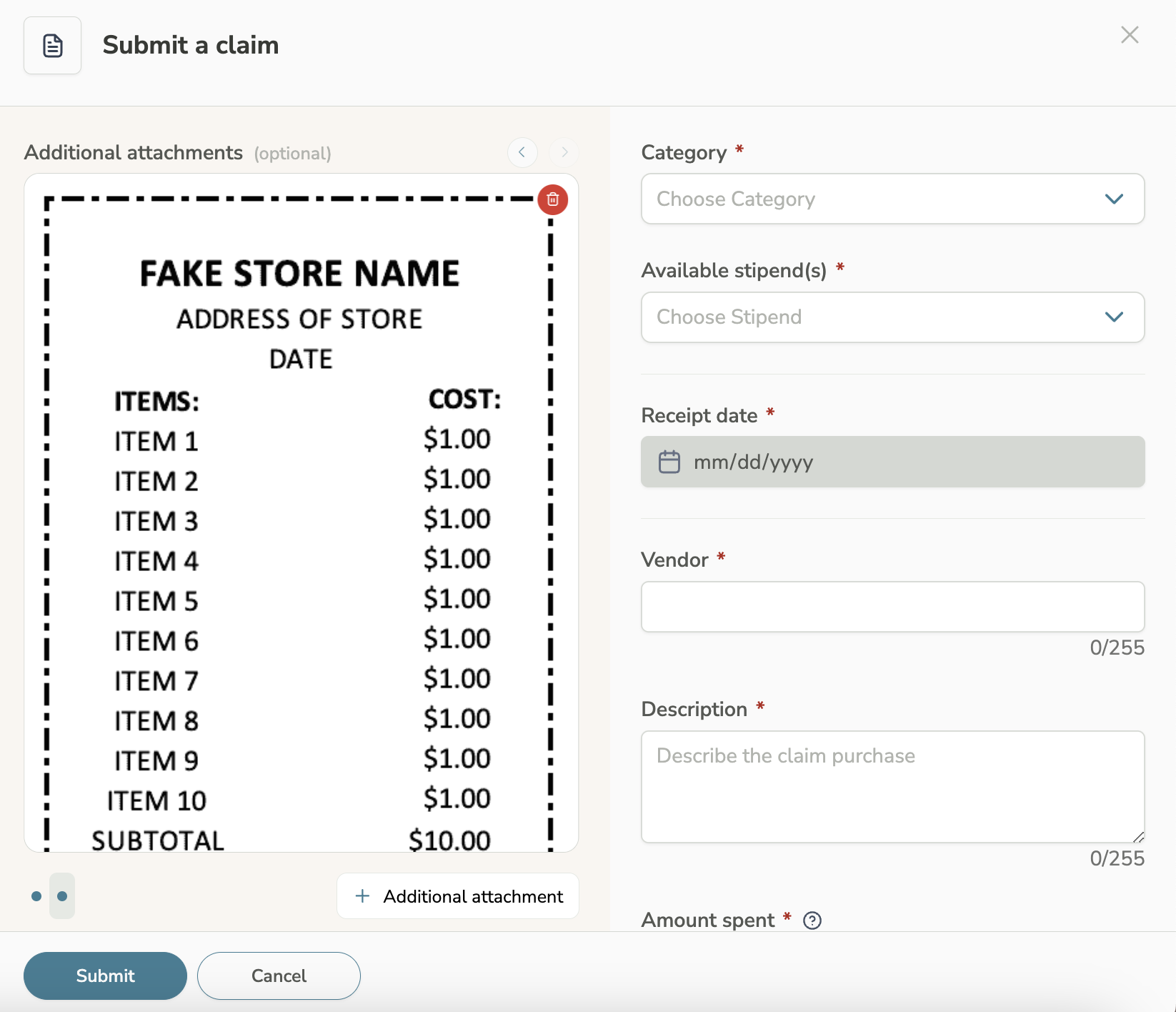
- Click Submit.
-
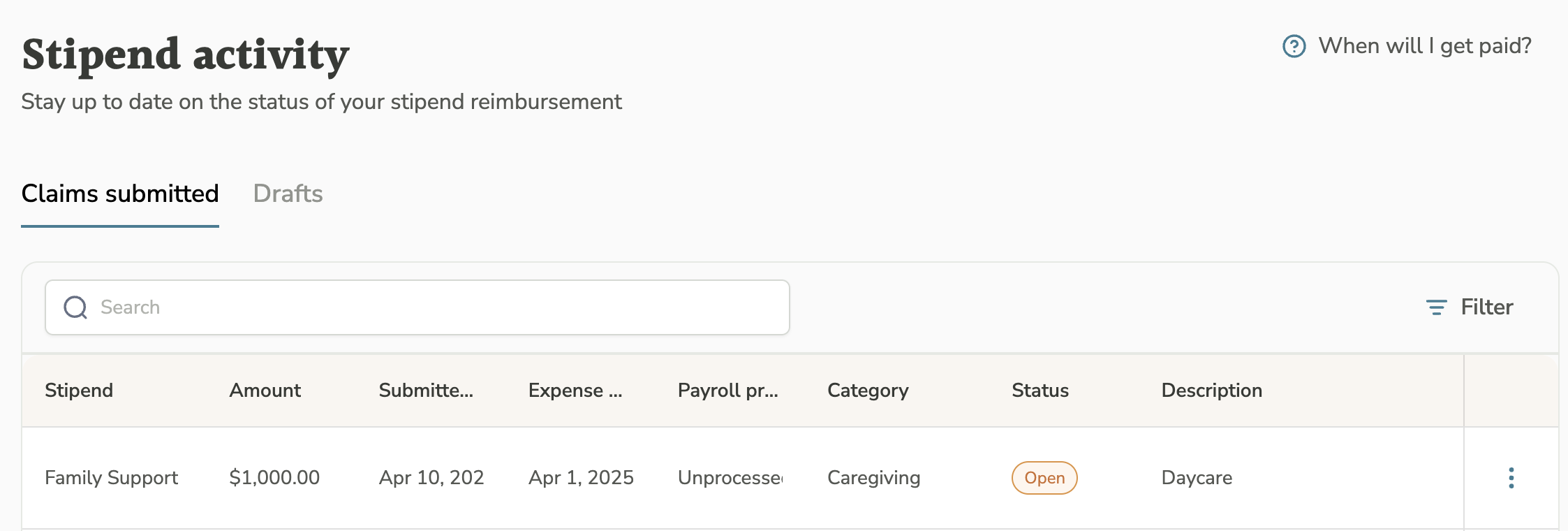
Confirm your submission by checking Claims submitted. It should show as Open.
Need Help?
Email support@compt.io if you have any issues or questions.