
Compt: How to Reject a Claim - Admins
Rejecting a claim in Compt allows Admins to prevent an ineligible expense from being reimbursed and optionally return the funds to the employee’s stipend. When rejecting a claim, Admins must provide a reason and decide whether the funds should be returned to the employee’s available stipend balance.
If funds are returned, the timing depends on the stipend cycle. Claims rejected earlier in the cycle typically return funds immediately, while claims rejected near the end of a cycle may return funds in the next cycle to ensure the employee has time to resubmit.
OVERVIEW
Compt allows Admins to review and approve or reject claims submitted by Employees for stipends, business expenses, or professional development expenses.
When a claim is rejected, Admins can choose whether the funds should be returned to the employee’s stipend balance or not. Returned funds may become available immediately or in the next stipend cycle depending on when the rejection occurs.
Admins must always provide a reason when rejecting a claim so the employee understands why the claim was not approved.
WHEN TO USE
Use this process when:
- A claim does not meet company stipend guidelines
- The receipt is missing required information
- The expense is not eligible for reimbursement
- The claim was submitted incorrectly
Rejecting a claim allows the employee to understand the issue and, if appropriate, submit a new claim before the stipend cycle ends.
BEFORE YOU START
Before rejecting a claim, confirm the following:
- The claim does not meet the company’s stipend policy
- The receipt or documentation is insufficient or incorrect
- You are prepared to provide a clear rejection reason for the employee
Admins should also review the stipend cycle timing, as it affects when returned funds become available.
HOW TO
- Log into Compt.
-
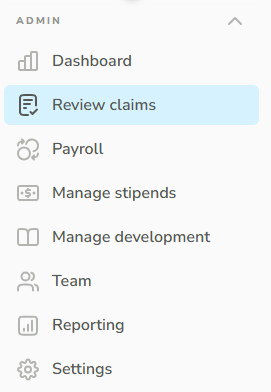
Click Review Claims.
- Select the claim type you want to review.
Options may include:
- Stipend
- Business Expenses
- Professional Development

- Locate the claim you want to reject.
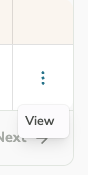
- Click the three dots to the right of the claim.
-
Click View to open the claim review screen.
-
Click the Reject button at the bottom right-hand side of the expense screen.

- Enter the reason for rejecting the claim. (This explanation will be visible to the employee.)
- Choose how the funds should be handled.
Options include:
- Reject and do not return funds to any stipend
- Reject this claim and return funds to the employee
Funds will automatically be returned unless you select the option to prevent the return.

- Click Reject Expense.
The claim will be marked as rejected, and the employee will be notified.
HOW TO VIEW REJECTED CLAIMS
Admins can view rejected claims from the Reporting page in Compt. Rejected claims are not viewed from the Review Claims page.
- Log into Compt.
- Click Reporting in the left-hand sidebar.
- Find the Filters section on the right side of the page.
- Select Rejected as the claim status.
- Review the results that populate on the page.
Use this process when you need to find a claim you recently rejected, review an Employee’s rejected claim, or view all claims with a rejected status.
WHAT HAPPENS NEXT
After a claim is rejected, one of the following outcomes occurs depending on the option selected and the timing within the stipend cycle.
If funds are returned before the final two days of the stipend cycle:
- The funds are returned to the employee’s stipend immediately.
- The employee can submit another claim using those funds before the cycle ends.
Example:
If a quarterly stipend runs January 1–March 31 and the claim is rejected on March 15, the funds return to the employee’s Q1 stipend and can be used before March 31.
If funds are returned within the final two days of the stipend cycle:
- The system will return the funds at the start of the next stipend cycle.
- This ensures the employee has enough time to resubmit a claim.
Example:
If a claim is rejected on March 30 or March 31 during a Q1 cycle, the funds will not return to Q1. Instead, they will be added to Q2 and can be used between April 1 and June 30.
If the claim is rejected after the original stipend cycle ends:
- Returned funds will be applied to the currently active stipend cycle.
Example:
If a Q1 claim is rejected on April 3, the funds will be returned to the active Q2 stipend.
If the original stipend cycle is no longer active and no replacement cycle exists:
- The option to return funds will not be available.
- The claim can only be rejected without returning funds.
TROUBLESHOOTING
Funds did not return immediately after rejecting a claim
If the rejection occurs within the final two days of a stipend cycle, funds are automatically returned at the start of the next cycle instead of immediately.
Employee needs funds immediately but the stipend cycle is ending
If the stipend is within its final two days and the employee needs access to funds right away:
- Reject the claim without returning the funds.
- Issue a manual funding correction or spot bonus for the required amount.
This allows the employee to receive funds immediately without waiting for the next stipend cycle.
Return funds option is unavailable
If the stipend that funded the claim is no longer active and no replacement cycle exists, funds cannot be returned. The claim can only be rejected without returning funds.
FAQS
Q: Does the employee see the reason for the rejection?
A: Yes. The reason entered during the rejection process is visible to the employee so they understand why the claim was not approved.
Q: When do returned funds become available to the employee?
A: Returned funds may become available immediately or at the start of the next stipend cycle, depending on when the claim is rejected.
Q: Can the employee submit the claim again after it is rejected?
A: Yes. If funds are available in the stipend and the cycle is still active, the employee can submit a new claim.
Q: How can I view rejected claims?
A: Go to Reporting. In the filter section on the right side of the page, select Rejected. The report will update to show rejected claims.