
Compt: How to Use the Stipend Review Table - Admins
The Stipend Review Table in Compt allows Admins to efficiently review and manage submitted claims. The table includes dynamic tools such as column search, filtering, sorting, and customizable column visibility so you can quickly locate and evaluate specific claims.
Instead of relying on grouping functions like in the previous expense table, Admins can now review claims more flexibly by filtering directly within individual columns. This allows you to isolate specific categories, employees, or claim details in just a few clicks.
OVERVIEW
The updated Stipend Review Table provides Admins with more control and flexibility when reviewing employee claims. With built-in tools for searching, filtering, sorting, and customizing visible columns, Admins can quickly narrow down the information they need.
These tools help streamline claim review workflows and make it easier to review claims by category, employee, submission date, or any other available field.
WHEN TO USE
Admins should use the Stipend Review Table when they need to:
- Review submitted claims
- Filter claims by category, employee, or other attributes
- Quickly locate a specific claim
- Sort claims to identify patterns or priorities
- Customize which data columns appear in the review table
BEFORE YOU START
Before reviewing claims:
- You must have Admin access in Compt.
- Employees must have already submitted claims through My Perks.
- Claims must appear in the Stipend Review Table for review.
HOW TO
- Log into Compt.
-
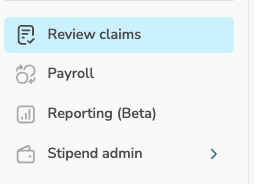
Navigate to Review claims on the left side of the Admin dashboard.
-
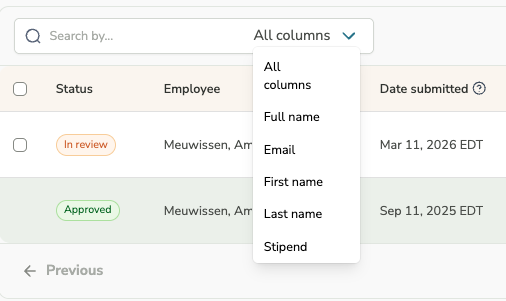
Use the Search by Column feature to locate specific information within a column.
-
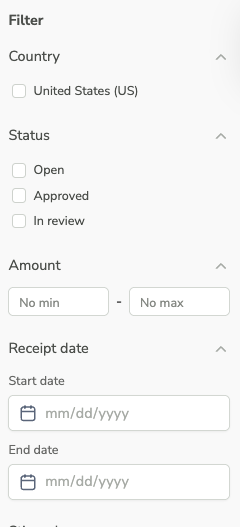
Use the Filters on the right-hand side to display only claims that match specific criteria.
-
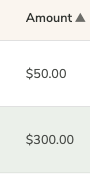
Click a column header to sort claims in ascending or descending order.
-
Use the Show/Hide Columns option to customize which claim details are visible in the table.
WHAT HAPPENS NEXT
After filtering or locating claims in the table, Admins can continue the claim review process by:
- Reviewing receipts and claim details
- Approving claims
- Rejecting claims if they do not meet stipend guidelines
Approved claims will move forward in the reimbursement workflow.
TROUBLESHOOTING
Issue: A claim cannot be found in the table
Possible Causes:
- The claim may not match the current filters applied.
- The claim may be outside the selected date range.
- The claim may have already been approved or rejected.
Resolution:
- Clear all column filters.
- Adjust sorting or search terms.
- Check additional pages of the table if pagination is enabled.
FAQS
Q: Can I filter claims by multiple categories?
A: Yes. The Category filter allows you to select multiple categories to display claims that match any of the selected options.
Q: Can I customize which information appears in the table?
A: Yes. Use the Show/Hide Columns option to control which columns are visible.
Q: Does filtering change the claim data permanently?
A: No. Filters only change what is visible in your table view and do not affect the underlying claim data.