
Compt: How to Integrate Workday with Compt – Admins
OVERVIEW
The Workday integration is a direct API connection that pulls employee information from Workday HRIS into your Team page in Compt, so you don't have to add or update employees manually.
What the integration does:
- Syncs employee information one way, from Workday to Compt.
- Uses an ISU with Get Only permissions, so Compt can read the data it needs but can't change anything in Workday.
- Syncs groups from Workday that can decide which stipends each employee is eligible for.
What the integration doesn't do:
- It doesn't sync payroll. You still run payroll in Compt from Payroll on the left sidebar.
- It doesn't connect to Workday Recruiting (ATS). It syncs employee data from Workday HRIS only.
Setup has 9 steps:
- Create an Integration System User (ISU) in Workday.
- Start the Workday connection in Compt.
- Create a security group in Workday and add the ISU.
- Give the security group the domain security permissions Compt needs.
- Activate the security policy changes.
- Check the authentication policy.
- Activate the authentication policy changes.
- Copy the web services endpoint URL from Workday and enter it in Compt.
- Confirm the sync.
WHEN TO USE
Use this article when:
- Your company uses Workday as its HR system (HRIS).
- You want new hires and employee changes in Workday to reach Compt automatically.
- You need to know which Workday permissions Compt needs.
- You're checking whether a Workday sync worked.
If you need payroll data synced as well as your team roster, see Compt: Integrating SFTP – Admins
BEFORE YOU START
You need:
- The Workday integration turned on for your Compt account. Contact your CSM or email support@compt.io.
- Admin access in Compt, so you can open Settings.
- Administrator access in your company's Workday tenant.
Have this information ready. You'll create some of it in the steps below:
- ISU user name
- ISU password
- Web services endpoint URL (the WSDL URL for Human Resources)
- Workday tenant name
About sandbox tenants: Implementation and sandbox Workday tenants sync more slowly, because Workday dedicates fewer resources to them. To raise the API limits for your tenant, contact Workday Support or your Workday Customer Account Manager. You can submit a request to Workday Support through the Workday Community support portal.
Check these Compt settings before you connect. Synced employees appear in Compt automatically, so these settings apply to them right away:
- New hire invitation (Settings > Employees): Controls whether and when new employees get their Compt invitation email. You can choose not to send it automatically, or send it on the hire date, on the first day of the next quarter, or a set number of days after the hire date. Invitations go out between 4 and 5 AM EST and are based on hire dates, so make sure hire dates sync from Workday.
- Default user roles (Settings > Employees): Sets the roles new users get in Compt. Role values that come from Workday override these defaults.
- Group change (Settings > Stipends): Controls when stipend funding updates after an employee's group changes in Workday. Options are Immediately, First of next month, and Beginning of next cycle.
- Group names: Groups synced from Workday that set stipend eligibility must exactly match the group names in Compt, including capitalization and spacing. A mismatch can affect stipend funding. Contact your CSM or support@compt.io before you finalize your field mapping.
HOW TO
Step 1: Create an Integration System User (ISU) in Workday
- Log into your Workday tenant.
-
In the Search field, type Create Integration System User.
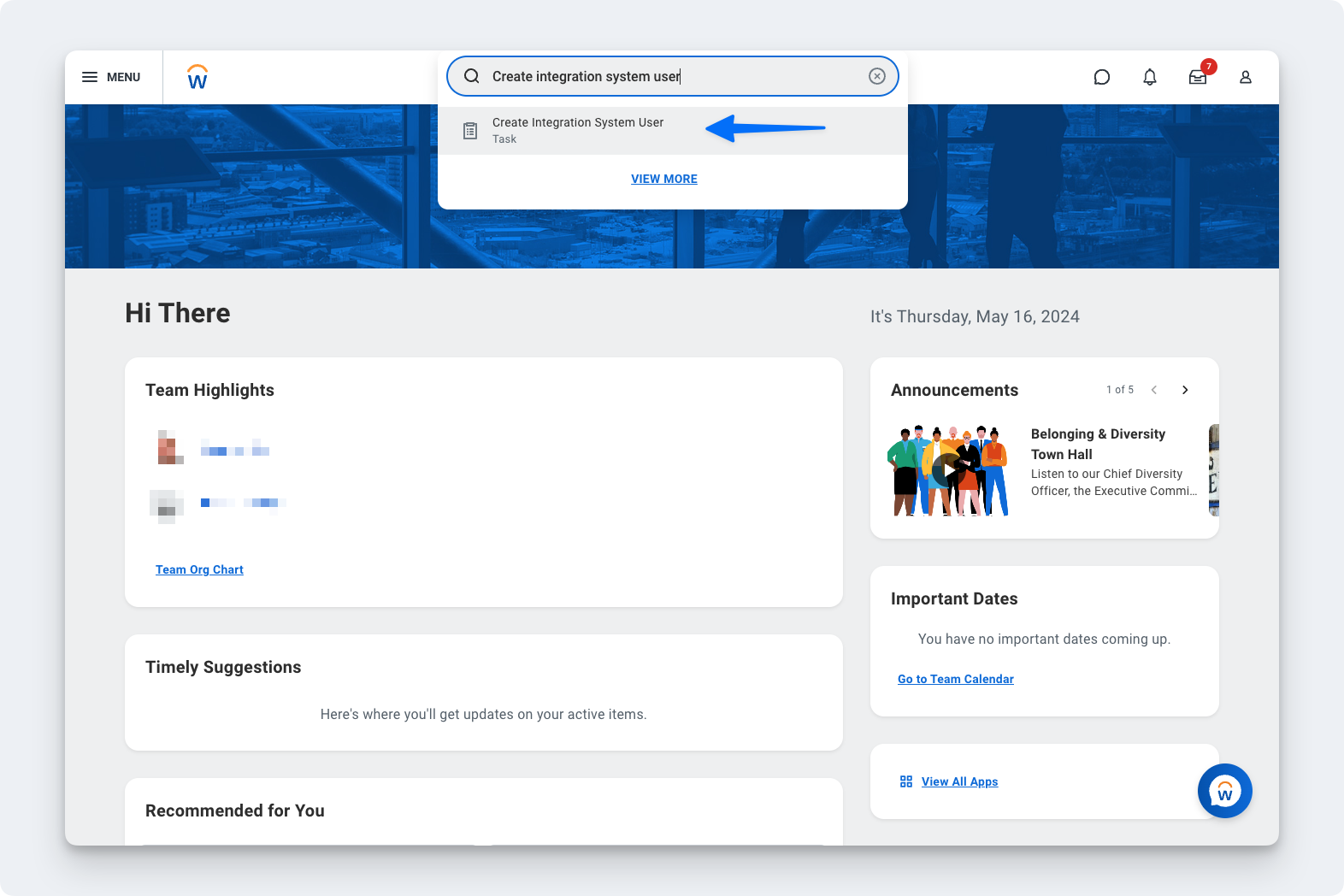
- Select the Create Integration System User task.
- In the Account Information section, enter a user name.
- Enter a password. Don't use an ampersand, a less-than sign, or a greater-than sign in the password.
- Enter the password again to confirm it.
-
Click OK.
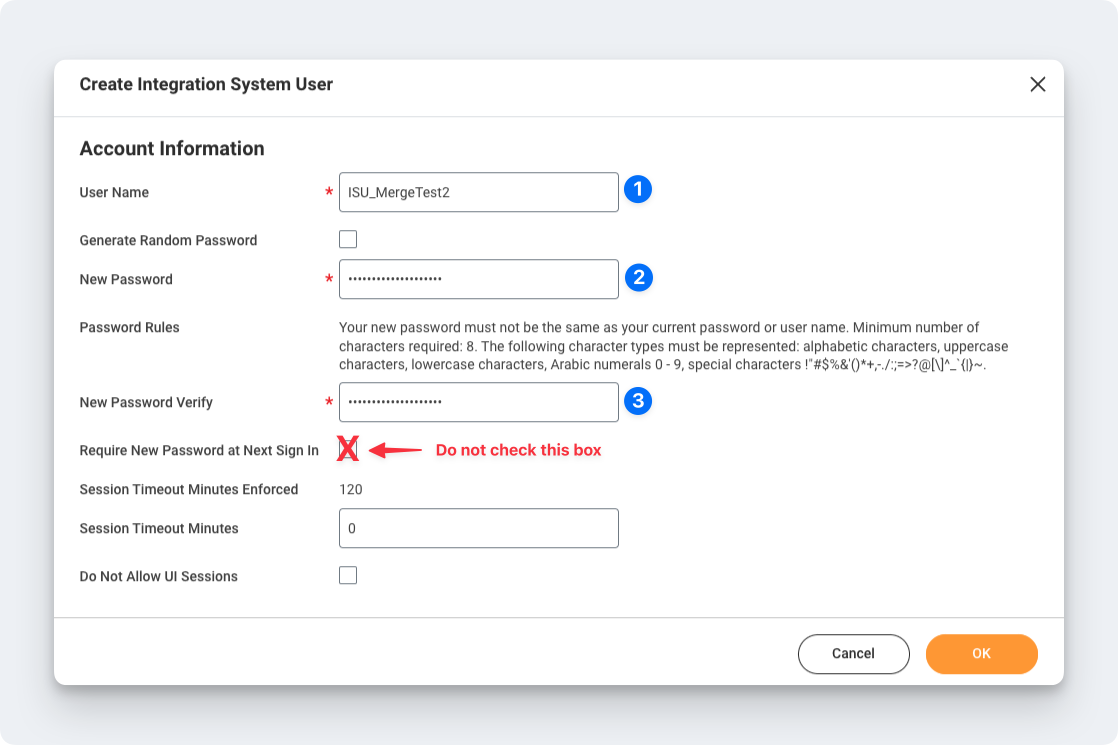
- Write down the ISU user name and password. You'll enter them in Compt in Step 2.
Next, stop the ISU password from expiring, so the connection keeps working:
-
In the Search field, type Maintain Password Rules.
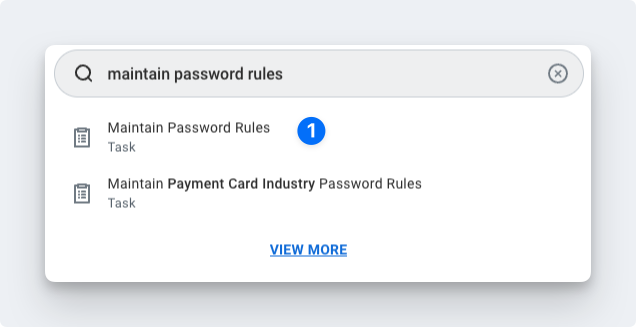
- Select the Maintain Password Rules task.
- Add the ISU to the System Users exempt from password expiration field.

Step 2: Start the Workday connection in Compt
- Log into Compt.
- Click Settings on the left sidebar.
- Click the Integrations tab.
- Scroll to the Employee Sync Integration tile.
- Click Set up integration. The Compt setup window opens.
- Select Workday from the list of providers.
- Choose to authenticate with your credentials.
- Confirm that you're an admin in Workday.
- Enter the Integration System User name from Step 1.
- Enter the Integration System User password from Step 1.
- Click Next.
Keep this Compt browser tab open. You'll come back to it in Step 8 to enter the web services endpoint URL.

Step 3: Create a security group in Workday and add the ISU
- Go back to Workday.
-
In the Search field, type Create Security Group.
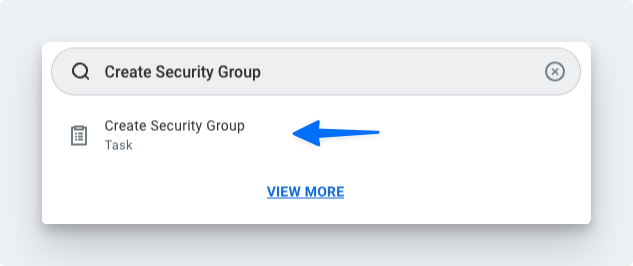
- Select the Create Security Group task.
-
From the Type of Tenanted Security Group menu, select Integration System Security Group (Unconstrained).
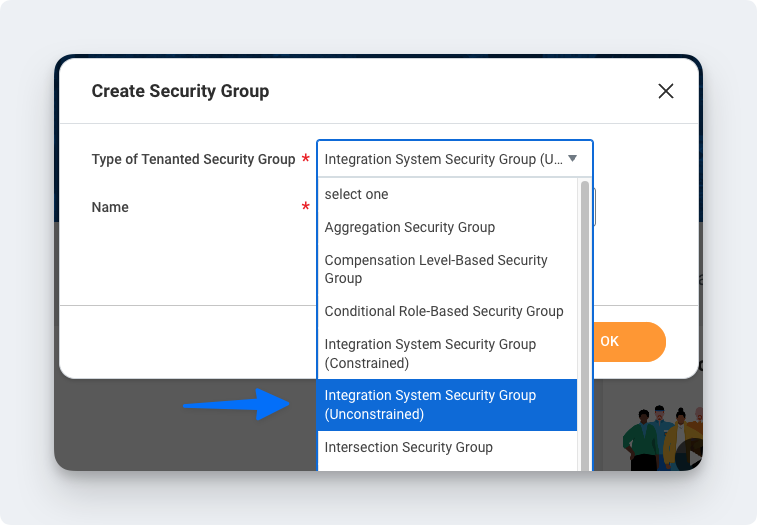
- In the Name field, enter a name for the security group.
- Click OK. The Edit Integration System Security Group (Unconstrained) page opens.
-
In the Integration System Users field, enter the ISU user name you created in Step 1.
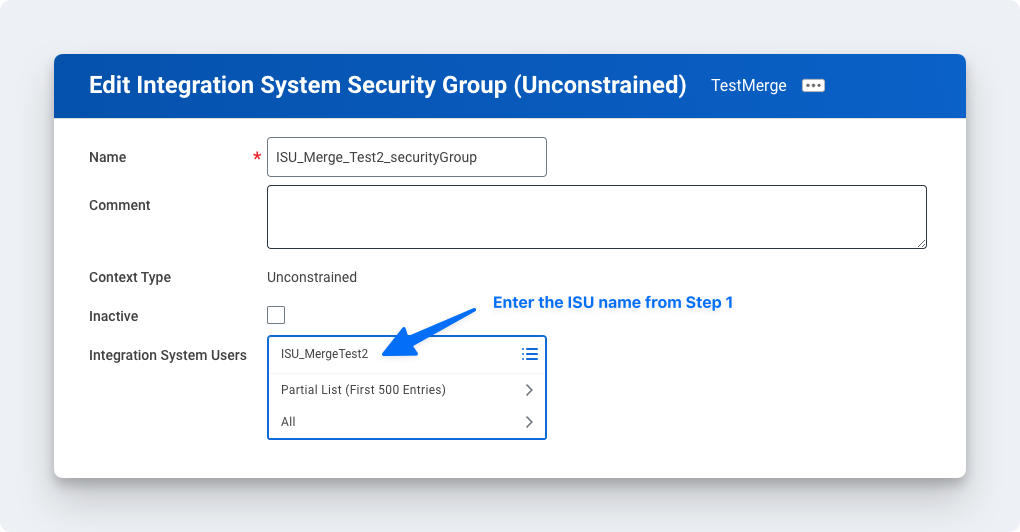
- Click OK.
Step 4: Give the security group the permissions Compt needs
-
In the Search field, type Maintain Permissions for Security Group.
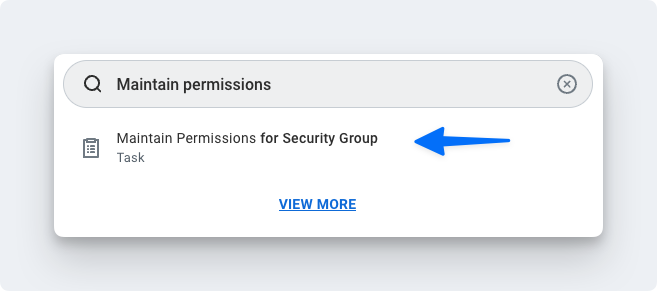
- Select the Maintain Permissions for Security Group task.
-
Make sure Operation is set to Maintain.
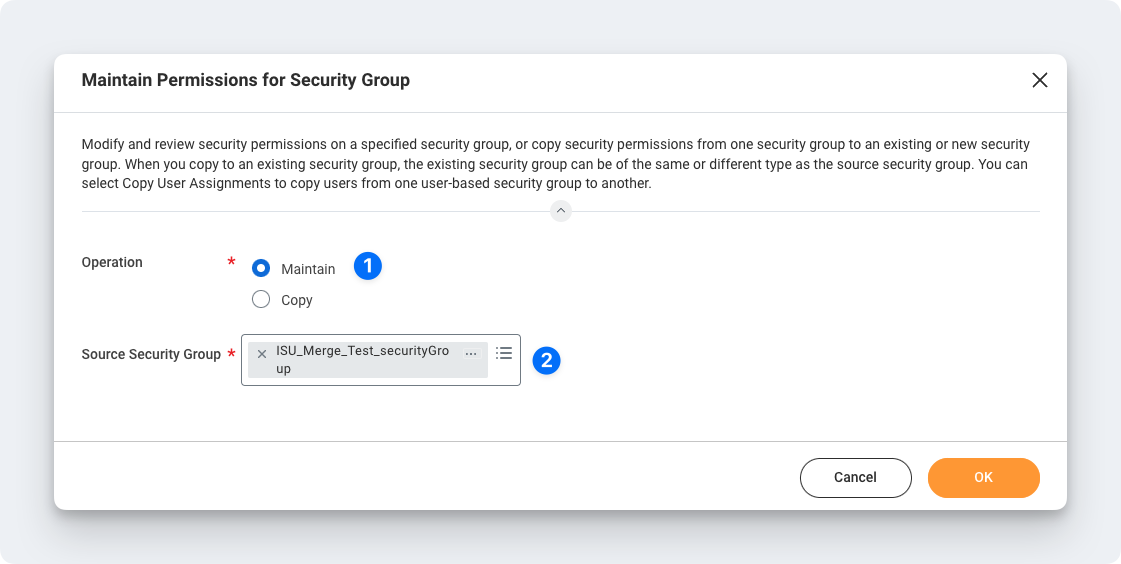
- Make sure Source Security Group is the security group you created in Step 3.
-
Go to the next screen.
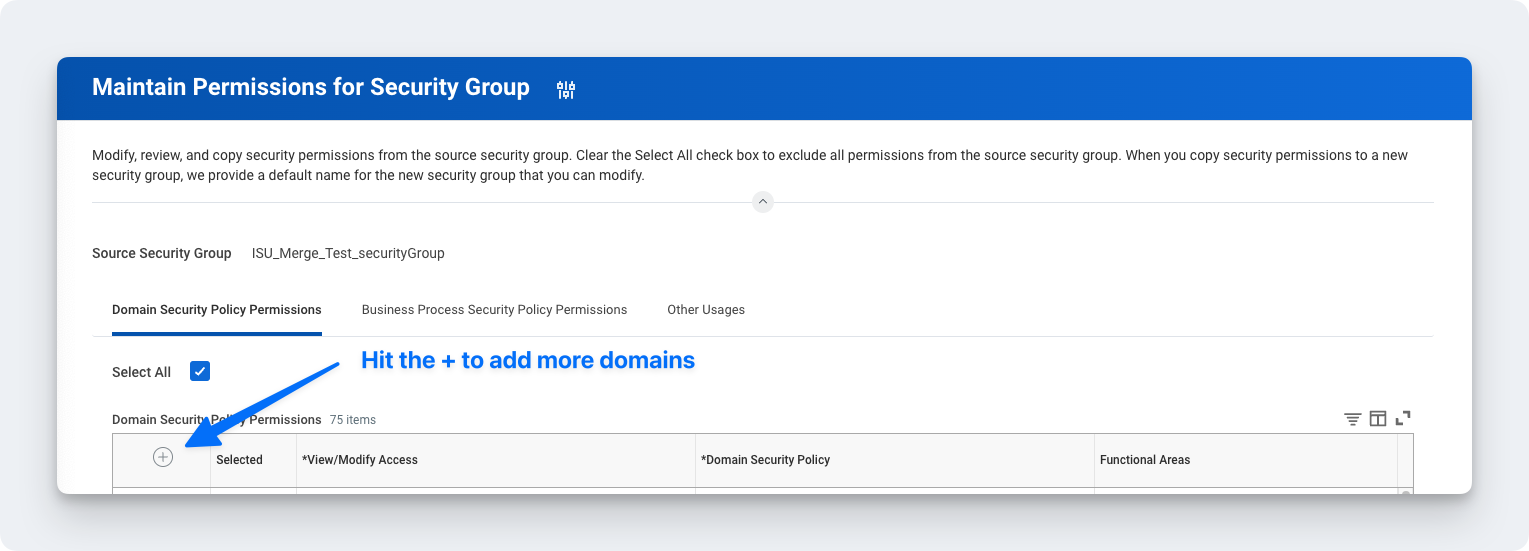
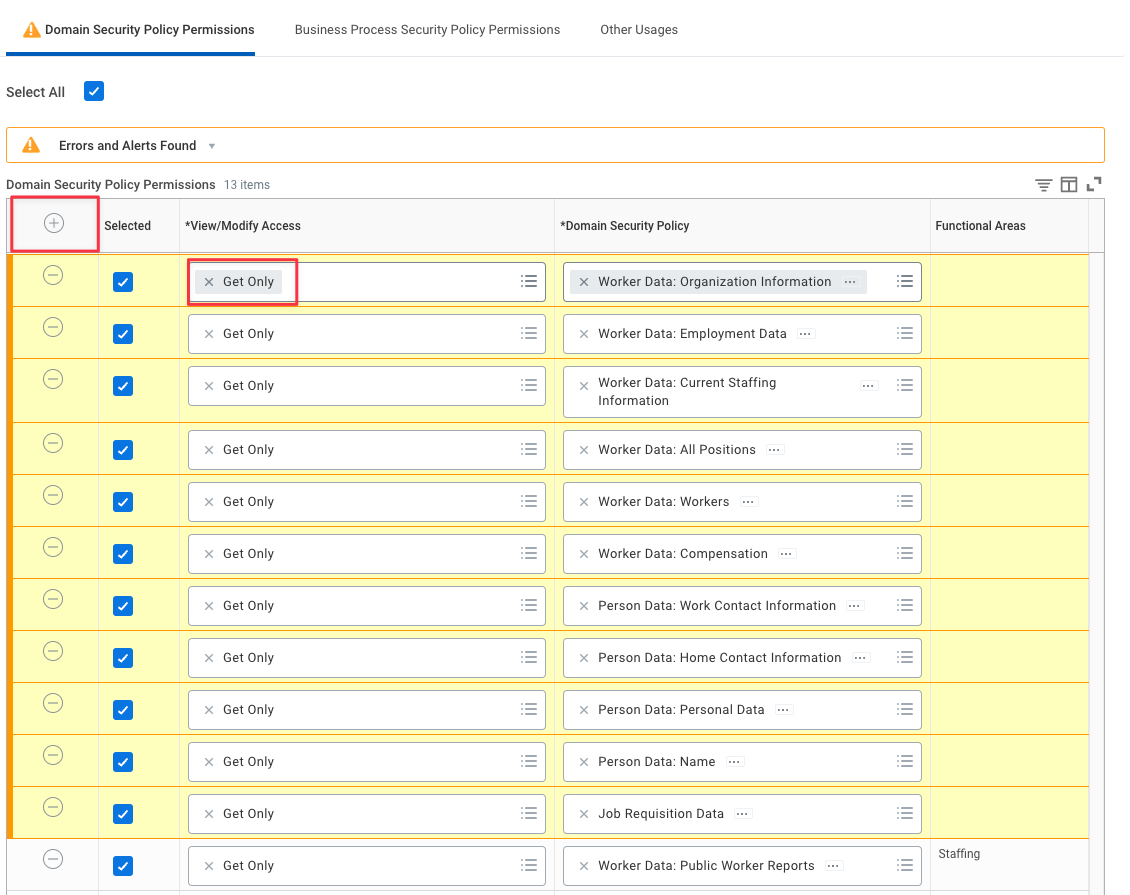
- Add each of these domain security policies, with View/Modify Access set to Get Only:
- Worker Data: Public Worker Reports
- Person Data: Name
- Person Data: Personal Data
- Person Data: Work Contact Information
- Person Data: Private Work Email Integration
- Person Data: Public Work Email Address Integration
- Worker Data: Workers
- Worker Data: All Positions
- Worker Data: Current Staffing Information
- Worker Data: Employment Data
- Worker Data: Organization Information
-
Manage: Organization Integration
Step 5: Activate the security policy changes
-
In the Search field, type Activate Pending Security Policy Changes.
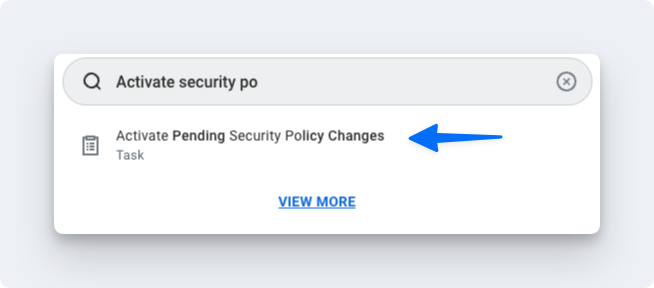
- Select the Activate Pending Security Policy Changes task. A summary of the pending changes opens.
-
Add a comment in the window that opens (optional).
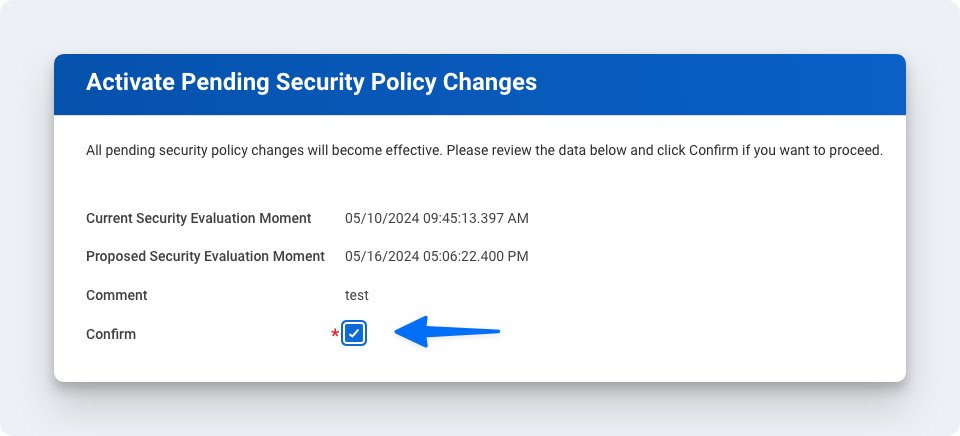
- Select Confirm to accept the changes.
- Click OK.
Step 6: Check the authentication policy
-
In the Search field, type Manage Authentication Policies.
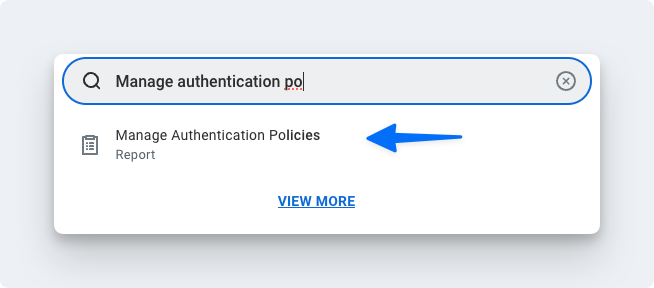
- Select the Manage Authentication Policies task.
- Click Edit on the authentication policy row.

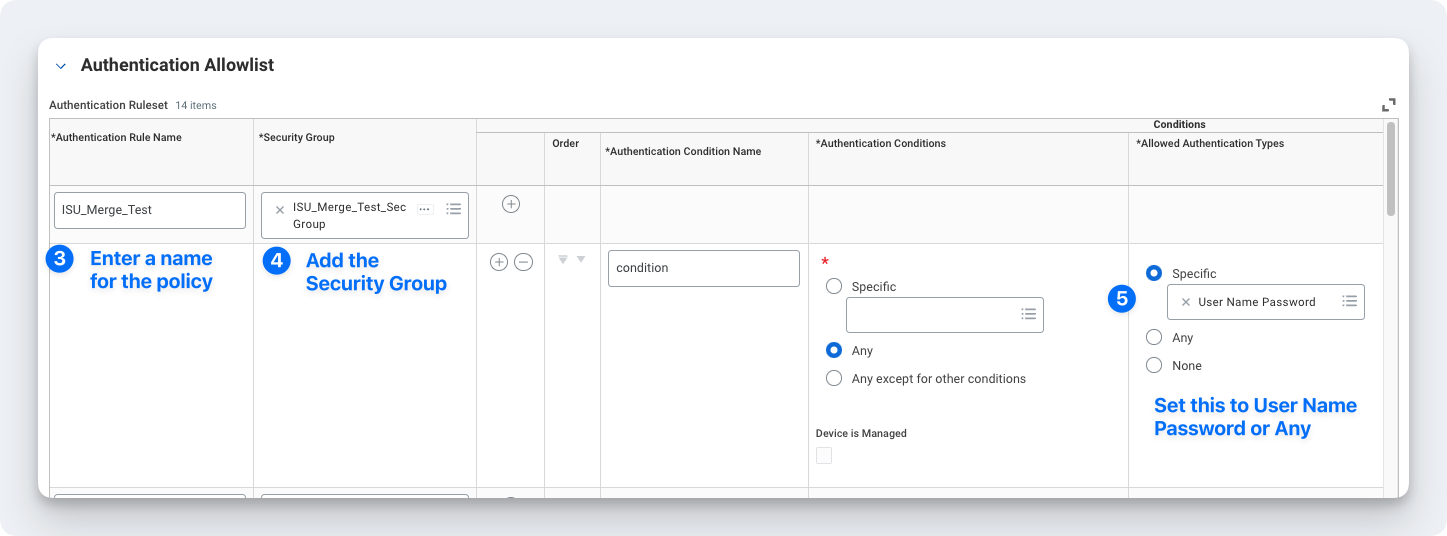
If you already have an authentication rule set to User Name Password or Any, you don't need a new rule. Add the ISU to that rule, then go to Step 7. You must create a new rule if SAML is the only allowed authentication type you see. To create a new rule:
- Create an authentication rule.
- Enter a name for the rule.
- Add the security group you created in Step 3.
-
Set Allowed Authentication Types to Specific with User Name Password, or to Any.
Step 7: Activate the authentication policy changes
-
In the Search field, type Activate All Pending Authentication Policy Changes.
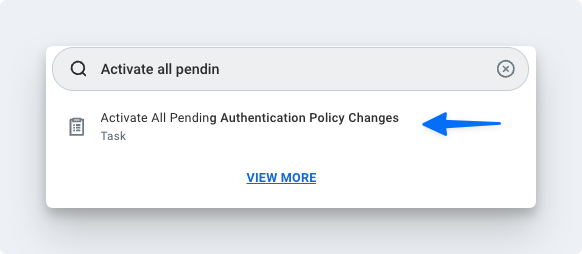
- Select the Activate All Pending Authentication Policy Changes task.
- Go to the next screen.
- Select Confirm. This saves the authentication policy you created or edited.
Step 8: Copy the web services endpoint URL and enter it in Compt
-
In Workday, search for Public Web Services.
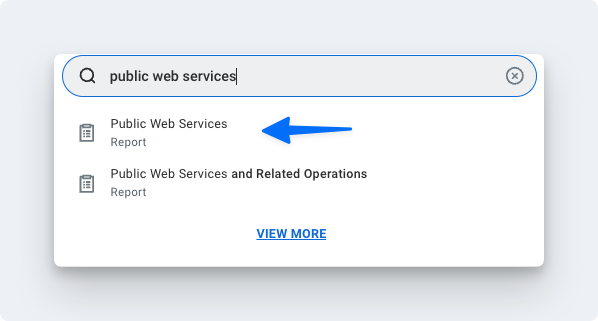
- Select the Public Web Services task.
-
Find Human Resources (Public) in the list.
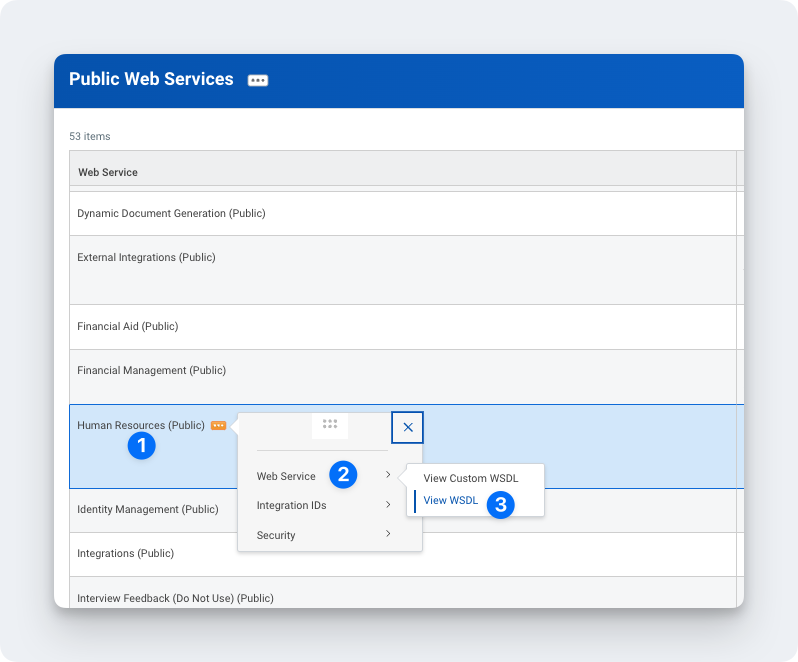
- Click the three dots next to Human Resources (Public).
- Click Web Services.
- Click View WSDL. A new page opens. It may take a few seconds to load.
- Scroll to the bottom of the page.
-
Copy the full URL under Human_ResourcesService. It looks similar to this: https://wd2-impl-services1.workday.com/ccx/service/acme/Human_Resources/v43.0

- Go back to the Compt setup window from Step 2.
- Paste the URL into the Web Services Endpoint URL field.
- Click Submit.
When you map fields, make sure any groups synced from Workday that set stipend eligibility exactly match the group names in Compt, including capitalization and spacing. Mismatches can affect stipend funding. Contact your CSM or support@compt.io before you finalize your field mapping.
Step 9: Confirm the sync
- Login to Compt
- Click Settings on the left sidebar.
- Click the Integrations Tab.
- Click Set up Integration.
-
Select Workday and enter the Web Services Endpoint URL when prompted.
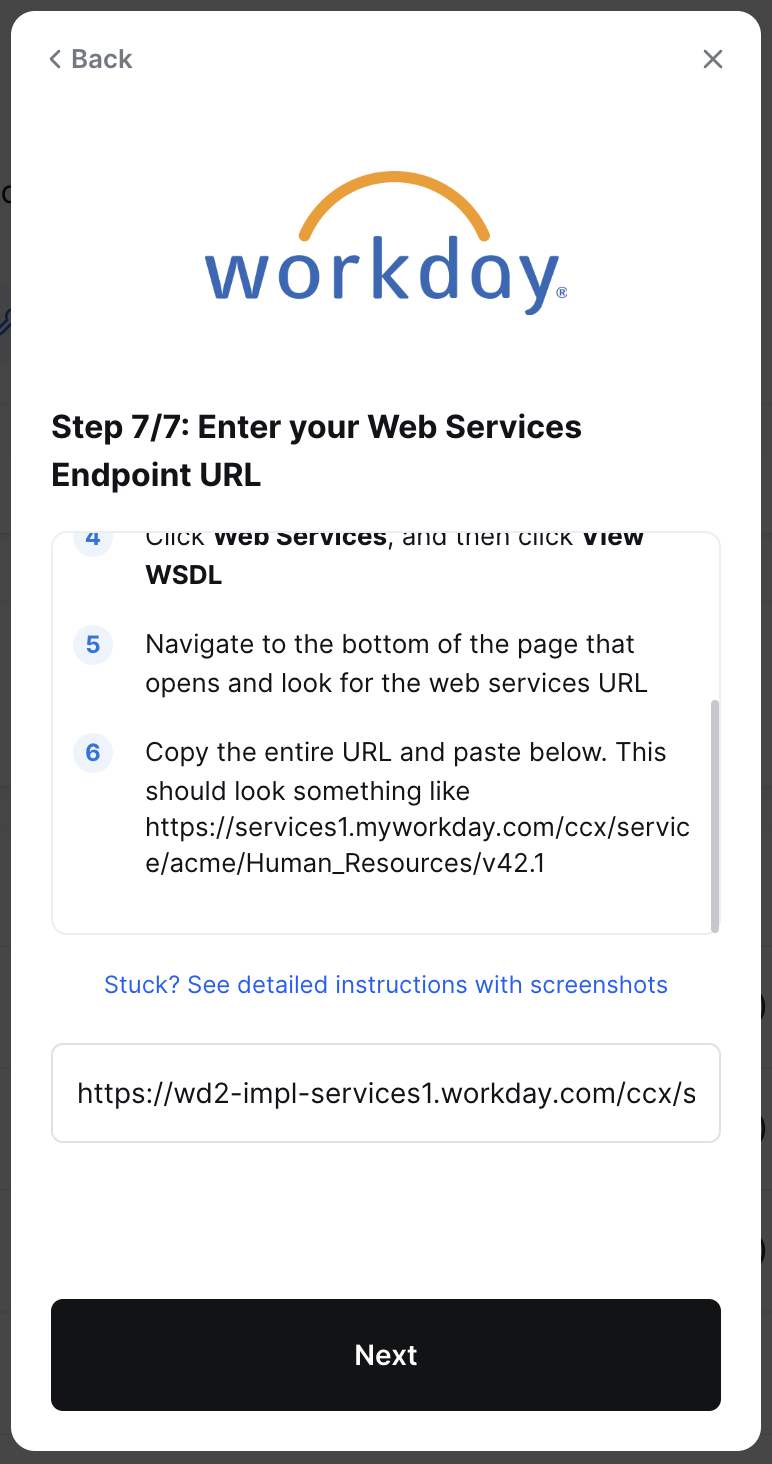
- Complete the setup, and trigger the employee sync.
- Wait for the sync to finish. The first sync can take up to 30 minutes.
- Click Settings on the left sidebar.
- Click the Integrations tab.
- On the Team sync logs tile, click View sync logs. The logs show the results of each employee roster sync.
- Click Team on the left sidebar to confirm your employees and their details came over from Workday.
WHAT HAPPENS NEXT
- Compt keeps your Team page in sync with Workday automatically.
- New employees get their Compt invitation based on your New hire invitation setting.
- When an employee's group changes in Workday, their stipend funding updates based on your Group change setting.
- You can review every sync in Settings > Integrations > Team sync logs > View sync logs.
- Payroll isn't affected. Keep running payroll from Payroll on the left sidebar.
Employees don't need to do anything except accept their Compt invitation and log in.
TROUBLESHOOTING
I don't see how to set up Workday in Compt
- Confirm that Compt has turned on the Workday integration for your account. Contact your CSM or support@compt.io.
- Make sure you're on Settings > Integrations and looking at the Employee Sync Integration tile.
Compt won't accept the ISU user name or password
- Check the user name and password for typos.
- Make sure the password doesn't include an ampersand, a less-than sign, or a greater-than sign.
- Check that the authentication rule from Step 6 allows User Name Password or Any, not only SAML.
- Make sure you completed Step 7 to activate the authentication policy changes.
The sync fails or employee details are missing
- Check that the security group has all 12 domain security policies from Step 4, each set to Get Only.
- Make sure you completed Step 5 to activate the security policy changes.
- Click View sync logs on the Team sync logs tile to look for errors.
I can't find the web services endpoint URL
- Make sure you opened Human Resources (Public), not another web service.
- Give the View WSDL page a few seconds to load, then scroll to the very bottom.
- Copy the URL under Human_ResourcesService.
The sync is slow
- The first sync can take up to 30 minutes.
- Implementation and sandbox tenants sync more slowly. Contact Workday Support or your Workday Customer Account Manager to raise your tenant's API limits.
The sync stopped working after it was set up
- Check that the ISU is still listed in System Users exempt from password expiration in Workday.
- Check that the ISU password hasn't been changed.
- Then email your Customer Success Manager or support@compt.io.
An employee's stipend funding is wrong after a sync
- Make sure the group name from Workday exactly matches the group name in Compt, including capitalization and spacing.
- Check Settings > Stipends > Group change to see when funding changes take effect.
New employees didn't get a Compt invitation
- Check Settings > Employees > New hire invitation. If invitations aren't sent automatically, go to Team, select the employees, and click Actions > Send Invitation.
- Make sure hire dates sync from Workday. Scheduled invitations are based on hire dates.
If none of these steps fix the problem, email support@compt.io with the affected employee's name and what you see in the sync logs.
FAQS
Q: Does Compt integrate with Workday?
A: Yes. Compt has a direct API integration with Workday that syncs your employee roster into Compt. Ask your CSM or support@compt.io to turn it on, then set it up in Settings > Integrations > Employee Sync Integration.
Q: Does the Workday integration sync payroll?
A: No. The Workday API integration syncs your team roster only. If you need payroll data synced too, Compt can set up an SFTP file transfer instead, and Compt has done this setup with Workday before. See Compt: Integrating SFTP - Admin
Q: What Workday permissions does Compt need?
A: Get Only access to these 12 domain security policies: Worker Data: Public Worker Reports; Person Data: Name; Person Data: Personal Data; Person Data: Work Contact Information; Person Data: Private Work Email Integration; Person Data: Public Work Email Address Integration; Worker Data: Workers; Worker Data: All Positions; Worker Data: Current Staffing Information; Worker Data: Employment Data; Worker Data: Organization Information; Manage: Organization Integration. Get Only means Compt can read this data but can't change anything in Workday.
Q: What information do I need to connect Workday to Compt?
A: Your ISU user name, ISU password, web services endpoint URL, and Workday tenant name. You also need to be an Administrator in your company's Workday tenant.
Q: Why does the ISU password need to be exempt from expiration?
A: If the ISU password expires, Compt can no longer sign in to Workday, and your sync stops.
Q: How long does the Workday sync take?
A: The first sync can take up to 30 minutes.
Q: Can I connect a Workday sandbox or implementation tenant?
A: Yes, but syncs are slower because Workday dedicates fewer resources to those tenants. To raise your tenant's API limits, contact Workday Support or your Workday Customer Account Manager.
Q: Can I connect Workday Recruiting (ATS)?
A: No. The integration syncs employee data from Workday HRIS (Human Resources) only.
Q: Where can I see if the Workday sync worked?
A: Click Settings on the left sidebar, click the Integrations tab, and click View sync logs on the Team sync logs tile. To see the synced employees, click Team on the left sidebar.