
Compt: How to Navigate the New Administrator Experience – Admins
OVERVIEW
The new Administrator Experience reorganized the Admin side of Compt. It includes:
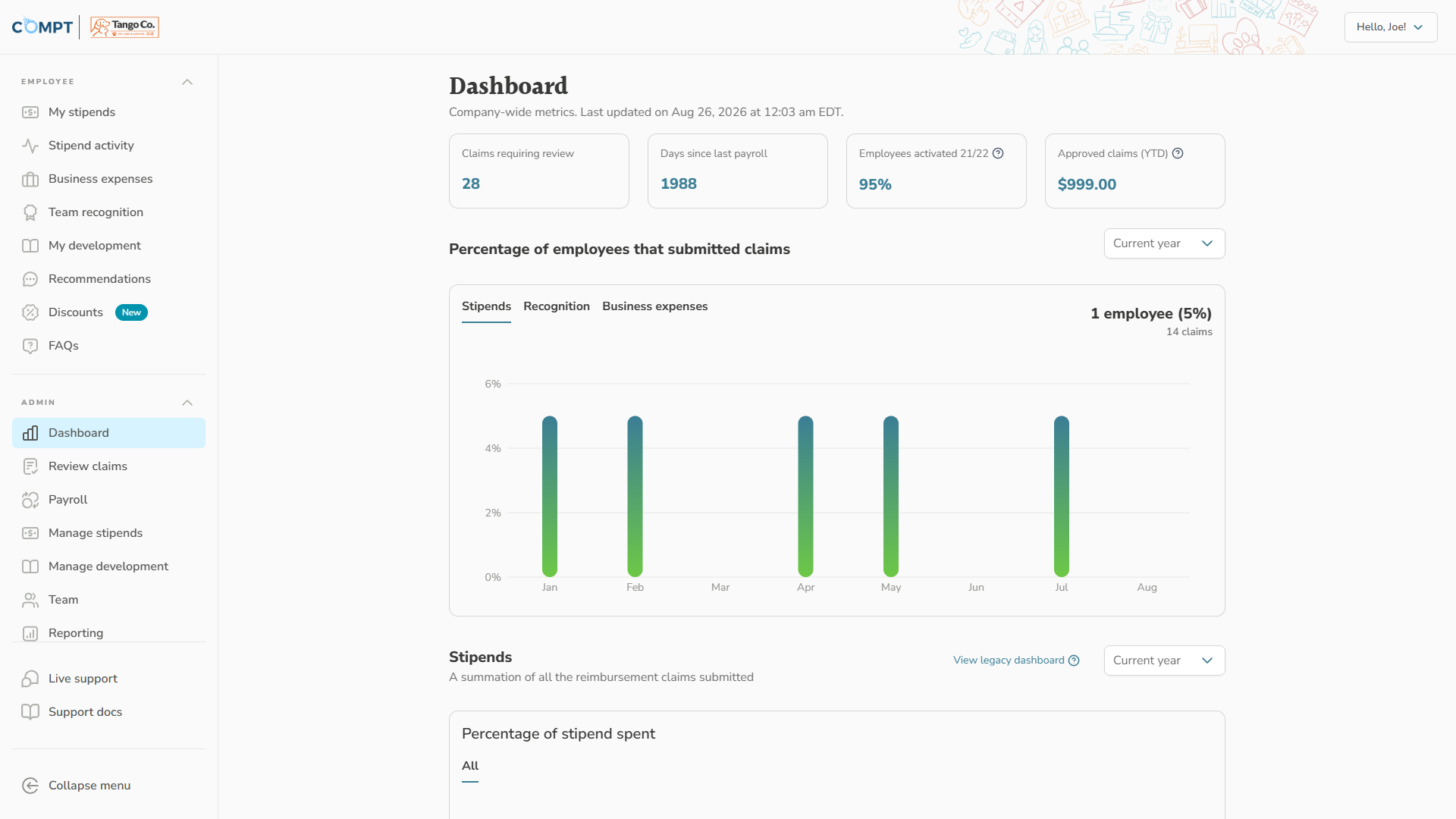
- A new Dashboard with company-wide metrics
- A redesigned Settings page with 9 tabs
- A new Reporting page with 7 report tabs
- A reorganized side menu that you can collapse or expand
The Admin section of the side menu includes:
- Dashboard: company-wide metrics, such as claims requiring review and days since last payroll
- Review claims: review stipend claims, business expenses, professional development requests, and pre-approved stipend claims
- Payroll: run payroll for stipends and business expenses, and view payroll history
- Manage stipends: create and manage stipends, including recurring, new hire, spot bonus, team recognition, work anniversary, birthday, and shout out stipends
- Manage development: create and manage Professional Development Pro programs
- Team: add, invite, and manage employees, and use the Actions menu for tasks such as Give Spot Bonus and Stipend Funding Correction
- Reporting: view and export reports
- Settings: company, employee, stipend, expense, FAQ, payroll, integration, stipend category, and notification settings
Manage stipends and Team open as legacy-style pages. They keep the older Compt design and open outside the new page layout. All other Admin pages open in the new layout.
The Employee menu items, including FAQs, still appear in the side menu. FAQs shows published FAQs the way Employees see them. To add, edit, or publish FAQs, use Settings > FAQs.
WHEN TO USE
Use this article when:
- You're looking for a page, setting, or report that used to be somewhere else
- An older article, bookmark, or teammate mentions Stipend Admin, Expense Admin, Development Admin, Company Settings, Expense Settings, or the Manage Stipends tab
- You want an overview of the new Admin side menu
- You're training a new Admin on where things are
BEFORE YOU START
- You must be logged into Compt as an Admin. Employees do not see the Admin section of the side menu.
- The pages and Settings tabs you see depend on the Compt roles on your account. If you're missing a page another Admin can see, see Compt: How to Update Employee Roles and Permissions - Admin.
- Manage development appears only if Professional Development Pro is part of your Compt service plan.
- No action is needed to switch. All customers moved to the new Administrator Experience on September 21, 2026.
- If the side menu shows only icons, it is collapsed. Expand it to see the page names.
HOW TO
To open an Admin page
- Log into Compt.
- Find the Admin section of the left side menu.
- Click the page you need: Dashboard, Review claims, Payroll, Manage stipends, Manage development, Team, Reporting, or Settings.
-
To use the Dashboard
- Click Dashboard in the side menu.
- Review the four tiles at the top: Claims requiring review, Days since last payroll, Employees activated, and Approved claims (YTD).
- Scroll to Percentage of employees that submitted claims.
- Click the Stipends or Business expenses tab to switch the chart.
- Use the time-period dropdown to change the time frame.
- To filter stipend utilization by a specific stipend, click View legacy dashboard.
For every Dashboard chart, see Compt: How to View Engagement and Dashboard Reports – Admins.
To open a Settings tab
- Click Settings in the side menu.
- Click the tab you need.
The 9 Settings tabs are:
- Company: company name, team size, industry, website URL, time zone, address, logo, and service plan
- Employees: new hire invitation timing, default user roles, and bulk upload rules
- Stipends: who covers taxes, group change timing, funding eligibility, stipend receipt date limits, and pre-approval
- Expenses: business expense cost centers, expense categories, clients, mileage and per diem rates, receipt requirements, and your expense policy
- FAQs: add, edit, and publish the FAQs Employees see
- Payroll: payroll provider for benefits expenses and for business expenses, a sample payroll CSV, and payroll reminders
- Integrations: Employee Sync and Slack Integrations, and Team sync logs
- Stipend categories: the descriptions shown with each stipend category (only taxable category descriptions can be edited)
- Notifications: custom notifications sent to Employees

To view and export a report
- Click Reporting in the side menu.
- Click the report tab you need.
- Enter a date range.
- Click Export.
The 7 Reporting tabs are:
- Stipend expenses
- Stipend utilization
- Stipend adjustments
- Recognition
- Business expenses
- Professional development budgets
- Professional development requests
For filters, columns, and export options, see Compt: How to View Engagement and Dashboard Reports – Admins.
To find a page that moved (old-to-new location map)
Use this list when an older article, bookmark, or teammate uses an old page name.
- Stipend Admin (old side-menu section): now split into separate pages in the Admin section of the side menu. Create and edit stipends in Manage stipends. Review stipend claims in Review claims > Stipend expenses. Run stipend payroll in Payroll > Stipends. Manage employees in Team. Change company settings in Settings.
- Stipend Admin Payroll section: now Payroll in the side menu, on the Stipends tab.
- Expense Admin (old side-menu section): review business expenses in Review claims > Business expenses. Run business expense payroll in Payroll > Business expenses. Configure business expenses in Settings > Expenses. Manage employees in Team.
- Development Admin (old side-menu section): manage Professional Development Pro programs in Manage development (the page header reads Manage programs). Review requests in Review claims > Professional development. Pull reports in Reporting > Professional development budgets or Professional development requests.
- Company Settings (old page or tab): now Settings, split into 9 tabs. For example, Group Change Settings are now Settings > Stipends > Group change. Integration settings are now on Settings > Integrations. Category descriptions are now on Settings > Stipend categories.
- Expense Settings: now Settings > Expenses.
- Manage Stipends tab: now Manage stipends in the side menu. It opens as a legacy-style page.
- Team tab: now Team in the side menu. It opens as a legacy-style page.
- Dashboard tab reports (reports you downloaded from the old Dashboard): now on Reporting. Click a report tab, then click Export. The old dashboard is still available from Dashboard > View legacy dashboard.
- Notifications page (old separate side-menu page): now Settings > Notifications.
- FAQ page (old separate side-menu page for managing FAQs): now Settings > FAQs. The FAQs item that still appears in the side menu shows published FAQs the way Employees see them.
WHAT HAPPENS NEXT
- Your data did not change. Stipend balances, claims, and reimbursement history are the same as before the update.
- All Admin navigation now happens in the side menu. You can collapse it with Collapse menu at the bottom of the side menu, and expand it again when you need it.
- For help at any time, click Live support or Support docs at the bottom of the side menu.
TROUBLESHOOTING
I can't find a report I used to download from the old Dashboard
- Click Reporting, click the report tab you need, then click Export.
- To filter stipend utilization by a specific stipend, click Dashboard, then click View legacy dashboard.
I can't find Notifications or FAQ settings
- Click Settings, then click the Notifications or FAQs tab. These are no longer separate side-menu pages.
An article or teammate mentions Stipend Admin, Expense Admin, Development Admin, or Company Settings
- Those names no longer appear in Compt. Use the old-to-new location map in the HOW TO section of this article.
I don't see a page or Settings tab that another Admin can see
- Your Compt roles control what you see. Ask an Admin who manages roles to check yours. See Compt: How to Update Employee Roles and Permissions - Admin.
- If Manage development is missing, Professional Development Pro may not be on your plan. Contact your Compt Customer Success Manager or support@compt.io.
Manage stipends or Team looks different from the rest of Compt
- This is expected. Both open as legacy-style pages that keep the older Compt design.
The side menu shows only icons
- The side menu is collapsed. Expand it from the bottom of the side menu. When the menu is open, this control reads Collapse menu.
FAQS
Q: Do I need to do anything to get the new Administrator Experience?
A: No. It rolled out automatically to all customers on September 21, 2026.
Q: Will my stipend, claim, or reimbursement data be affected?
A: No. The update changed navigation and page layout only. Stipend, claim, and reimbursement data did not change.
Q: Where did Stipend Admin go?
A: Stipend Admin was split into separate pages in the Admin section of the side menu: Manage stipends, Review claims, Payroll, Team, and Settings. See the old-to-new location map in the HOW TO section of this article.
Q: Where are Company Settings now?
A: Click Settings in the side menu. Company Settings are now split across 9 tabs: Company, Employees, Stipends, Expenses, FAQs, Payroll, Integrations, Stipend categories, and Notifications.
Q: Where do I run payroll now?
A: Click Payroll in the side menu. Choose the Stipends or Business expenses tab, select a cutoff date, and click Run payroll. To see past payroll runs, click View history.
Q: Where do I give a spot bonus now?
A: Spot bonus stipends are created in Manage stipends. To give a spot bonus, click Team, select the Employee, open the Actions menu, and click Give Spot Bonus.
Q: Where do I do a stipend funding correction?
A: Click Team, select the Employee, open the Actions menu, and click Stipend Funding Correction.
Q: Where are notification settings?
A: Click Settings, then click the Notifications tab. Click Add to create a custom notification.
Q: Where do I edit Employee FAQs?
A: Click Settings, then click the FAQs tab. FAQs stay hidden from Employees until you publish them, and default FAQs start as Unpublished.
Q: Where are integrations for Slack, HRIS, or my payroll provider, and the sync logs?
A: Click Settings, then click the Integrations tab. To check employee roster syncs, click View sync logs under Team sync logs.
Q: Where is reporting?
A: Click Reporting in the side menu. It has 7 report tabs, and each report can be exported.
Q: Can I still use the old dashboard?
A: Yes. Click Dashboard, then click View legacy dashboard.
Q: Where do I find billing or invoices?
A: Billing and invoices are not in Settings. The Company tab shows your service plan only. For billing questions, contact your Compt Customer Success Manager or support@compt.io.
Q: Where are SSO settings?
A: Single Sign On (SSO) settings are not in Settings. Contact your Compt Customer Success Manager or support@compt.io.